
 0
0
How to Add Virtual Try-On to WooCommerce Without a Developer
For any fashion brand based in D2C India with a WordPress CMS, you can add virtual try-on WooCommerce fashion store India using which you can impress your customers without spending Rs.50,000 per developer or even more. This is how the setup works:
Key Takeaways
- For Indian D2C fashion brands, a common choice will be WooCommerce, and virtual try-on can be integrated using a plugin or API connection, without a need to write any lines of code.
- The primary advantage of try-on technologies is to minimize uncertainty of fit, which helps to increase conversion and reduce returns of fit-sensitive items.
- Test a couple of products first, test mobile speed and see if the try on button is near “Add to Cart.
Why WooCommerce Fits Indian Fashion D2C
WooCommerce is free and flexible and is hosted on WordPress, with many small Indian brands already familiar with management. It allows you to sell products without paying any fees to the marketplace. The tradeoff is that advanced features, like try-on, have often needed a developer. That’s changing.
So What Virtual Try-On Adds to a WooCommerce Store
A try on widget provides the customer with a visual of what the garment will look like on a mannequin or even him or herself before adding it to their shopping cart. The purpose is to ask, “will this look on me?”. In the case of fit-sensitive items such as sarees, lehengas, and fitted dresses, that uncertainty factors into why shoppers give up on their purchase or return them. Generally, the benefit is that it can improve conversion, basket size and return rates – but that is dependent on the category and quality of the product. Our Shopify Fashion Product Photos Without Budget posts cover similar ideas for stores on a different platform.
Step-by-Step: How to Install Virtual Try-On on WooCommerce
Now, the general no-code steps that should be followed to install virtual try-on WooCommerce stores are here. [Team: Confirm exact plugin name and menu labels before publishing.]
- Create your AI Vastra account and start with the free trial.
- Back up your site. Install anything new on top of a backup created with your Host’s backup tool.
- Install the plugin. In WordPress, visit Plugins and then Add New and search for AI Vastra plugin to activate it. If one is using the API route, they’ll copy the API key from clients account dashboard.
- Connect your account. Enter the API key in the plugin settings.
- Select the placement of the button. On the product pages, position the button to say “Add to Cart.
- Choose products to try-on. Choose a few of your most popular or returnable products.
- Save and preview. View a product page in an incognito window to understand what consumers will see.
The WooCommerce virtual try-on plugin India brands select ought not to create or modify theme files. If a setup asks you to edit code, that’s a sign to ask for support first.
Testing That It Works
Before rolling out to every product, run through this quick check:
☐ The button is visible on the product page on a desktop and on mobile devices.
☐ The try-on loads quickly on a normal mobile connection.
☐ The result looks right for your product photos.
☐ The “Add to Cart” button is still easy to find after trying on.
☐ Not noticeable slowdown on the page
Browsing on phones is crucial, as most shoppers browse on their phones.
Theme Compatibility, Common Setup Problems
Most modern WooCommerce themes work with standard product page layouts. If your theme heavily customizes the product page, the button may not show where expected. [Team: add the confirmed list of tested themes here.]
Common issues and fixes:
- Button doesn’t appear: clear your site cache and check that the product is selected for try-on.
- Slow loading: compress your product images and check your caching plugin settings.
- Poor try-on results: upload clearer, well-lit, wrinkle-free product photos.
What the Customer Sees
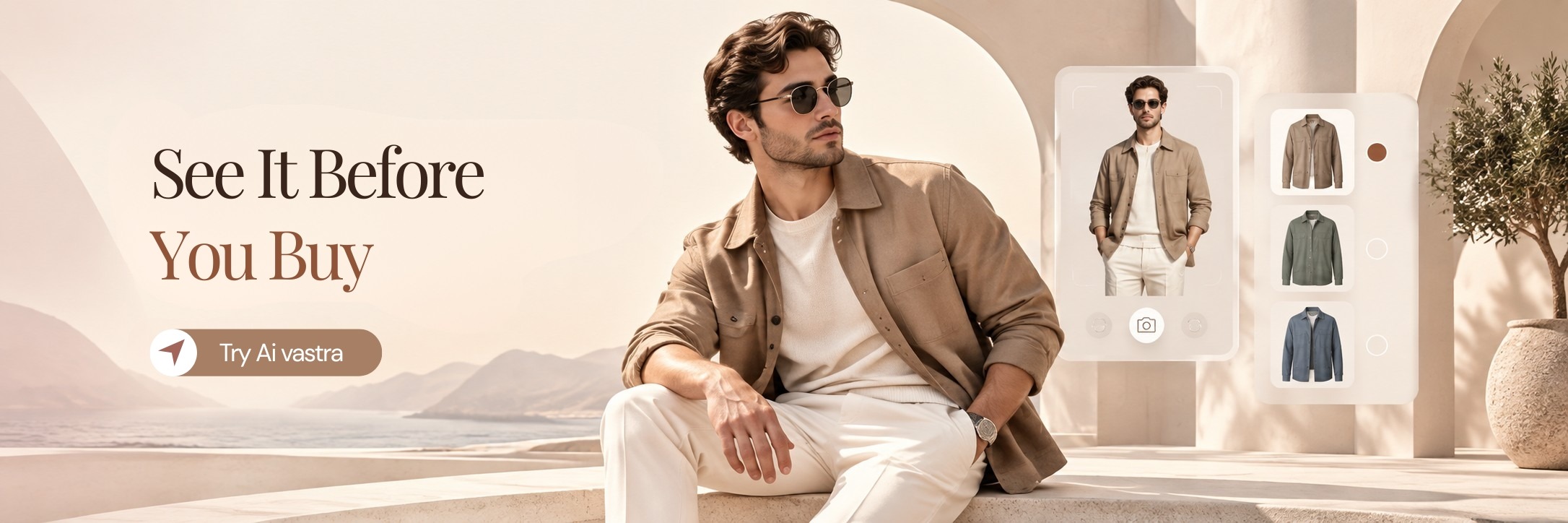
On their product page, the buyer clicks the try on button, uploads an image or chooses a model and the product appears on them in seconds. They can then place it in the cart without having to exit the website.
For stores wanting live, in-person-style experiences too, our AI Virtual Try-On Webcam India post covers the webcam option.
Works for Sarees?
Yes. AI Vastra’s virtual try-on is built for Indian garments like sarees and lehengas, where drape matters. See our AI Virtual Try-On Integration post for more detail on connecting it to your store.